Every Mac user knows Cmd+C and Cmd+V. You probably use them dozens — maybe hundreds — of times a day. But the macOS clipboard is far more powerful than those two shortcuts suggest. Buried beneath the surface are keyboard combinations that can strip formatting, move files without dragging, cycle through a secondary clipboard, and even share content across your Apple devices instantly.
Research from Brainscape estimates that mastering keyboard shortcuts can save the average knowledge worker 8 full workdays per year. And since copy-paste operations are among the most frequently repeated tasks on any computer, clipboard shortcuts offer some of the highest returns on the small investment of learning them.
Here are 10 clipboard shortcuts and tricks that every Mac user should have in their muscle memory.
1. Copy, Cut, and Paste — The Foundation
Cmd+C— Copy the selected content to the clipboardCmd+X— Cut the selected content (remove it and place it on the clipboard)Cmd+V— Paste the clipboard contents at the insertion point
Yes, you already know these. But here is something you might not: Cmd+X only works on text, not files. If you select a file in Finder and press Cmd+X, nothing happens. macOS takes a different approach to moving files, and we will cover that in shortcut #4.
Use case: These are your daily drivers. The goal is not to learn these — it is to build on them. Every shortcut below extends this foundation in a way that removes friction from a specific workflow.
2. Paste Without Formatting
Shortcut: Cmd+Option+Shift+V
You copy a heading from a web page and paste it into an email. Suddenly your email has a giant bold header in a completely different font. Sound familiar? The Paste and Match Style shortcut strips all formatting — fonts, colors, sizes, links — and pastes pure plain text that matches whatever you are pasting into.
If you almost always want plain text, you can remap Cmd+V itself. Go to System Settings > Keyboard > Keyboard Shortcuts > App Shortcuts, click the + button, set the application to All Applications, type "Paste and Match Style" as the menu title, and assign Cmd+V. Now every paste strips formatting by default, and the original rich paste moves to the old four-key combo.
Use case: Writers, marketers, and anyone who copies text from the web into documents. This single shortcut eliminates the tedious "paste into Notes first, then re-copy" workaround.
3. Copy and Paste Formatting Only
Shortcuts: Cmd+Option+C (Copy Style) and Cmd+Option+V (Paste Style)
These are the inverse of Paste and Match Style. Instead of stripping formatting, they let you copy only the formatting of selected text — font, size, color, bold, italic — and apply it to other text without changing the words themselves. Think of it as a format painter built directly into macOS.
Use case: You have a document where one paragraph is styled exactly how you want. Select it, press Cmd+Option+C, then select another paragraph and press Cmd+Option+V. The second paragraph instantly adopts the same styling. Designers and editors working in rich text applications like Pages or TextEdit will save significant time with this one.
4. Move Files in Finder (Cut and Paste for Files)
Shortcut: Cmd+C then Cmd+Option+V
One of the most common complaints from users switching from Windows is that you cannot cut files in Finder. There is no Cmd+X for files. But macOS does support moving files via the clipboard — it just uses a different two-step approach. First, copy the file with Cmd+C. Then, navigate to the destination folder and press Cmd+Option+V. The file is moved, not copied. It disappears from the original location entirely.
You can verify this in the menu bar: after copying a file, hold the Option key and watch the Edit menu change from "Paste Item" to "Move Item Here."
Use case: Reorganizing project folders, cleaning up your Downloads directory, or moving assets between design projects — all without touching the mouse to drag and drop.
5. The Hidden Kill Ring: Delete and Yank Text
Shortcuts: Ctrl+K (Kill to end of line) and Ctrl+Y (Yank/paste killed text)
This is one of the best-kept secrets in macOS. Inherited from Emacs, the kill ring is essentially a second clipboard that operates independently of Cmd+C/Cmd+V. Press Ctrl+K to delete everything from your cursor to the end of the line. The deleted text is stored in the kill ring. Press Ctrl+Y to paste it back anywhere.
The magic is that this works in any native text field across macOS — Safari, Notes, Mail, TextEdit, and most third-party apps that use standard macOS text views. And because the kill ring is separate from the system clipboard, you effectively have two independent clipboards at your disposal.
The kill ring is just one part of a family of Emacs shortcuts built into every Mac. Ctrl+A jumps to the beginning of the line. Ctrl+E jumps to the end. Ctrl+D deletes the character ahead of the cursor. Ctrl+H deletes the character behind (same as Backspace). Ctrl+U deletes from the cursor to the beginning of the line. These work in virtually every text input on macOS.
Use case: Developers and writers who want to quickly rearrange lines of text. Kill a line with Ctrl+K, navigate to the new location, and yank it back with Ctrl+Y — all without disturbing whatever is on your main clipboard.
6. Select All Before Copying
Shortcut: Cmd+A followed by Cmd+C
Simple but often underused. Cmd+A selects all content in the current context — all text in a document, all files in a Finder window, all cells in a spreadsheet. Pairing it immediately with Cmd+C gives you a fast way to grab everything without manually clicking and dragging.
But the real power comes from scoped selection. In most text editors, clicking inside a text block and pressing Cmd+A selects only the content in that field, not the entire page. Knowing this lets you confidently grab exactly the right content.
Use case: Copying an entire code file, an entire email draft, or all items in a folder. Pair with Cmd+Option+Shift+V to paste everything as clean plain text.
7. Undo a Paste Gone Wrong
Shortcut: Cmd+Z
This seems obvious, but many people do not realize that Cmd+Z undoes paste operations. If you accidentally paste the wrong content — or paste with unwanted formatting — just hit Cmd+Z immediately. The paste is reversed, and the original content is restored. In most apps, you can undo multiple times to step back through several operations.
The companion shortcut Cmd+Shift+Z is Redo, which re-applies an undone action. Together, these let you freely experiment with paste operations knowing you can always step backward.
Use case: You pasted a massive block of rich text into a Slack message and it looks like a disaster. Cmd+Z instantly reverts it so you can try again with Paste and Match Style.
8. Universal Clipboard: Copy on iPhone, Paste on Mac
Shortcut: Cmd+C on one device, Cmd+V on another
Apple's Universal Clipboard lets you copy content on your iPhone, iPad, or one Mac, and paste it on another Apple device — with no extra steps. Copy a phone number from your iPhone, switch to your Mac, and press Cmd+V. The text appears. It works with text, images, photos, and even videos.
The requirements: all devices must be signed into the same Apple Account, have Bluetooth and Wi-Fi enabled, and have Handoff turned on (System Settings > General > AirDrop & Handoff). The copied content stays available for approximately two minutes, so you need to paste relatively quickly.
Use case: You are on your phone and find an address, a link, or an authentication code. Instead of typing it manually on your Mac, just copy it on the phone and paste on the Mac. It is seamless once configured, and it works in both directions.
9. Smart Text Selection Shortcuts for Faster Copying
Before you can copy, you need to select. Most people click and drag with the mouse, but macOS offers precise keyboard-driven selection that is dramatically faster:
Shift+Cmd+Right Arrow— Select from cursor to end of lineShift+Cmd+Left Arrow— Select from cursor to beginning of lineShift+Option+Right Arrow— Select the next wordShift+Option+Left Arrow— Select the previous wordShift+Cmd+Down Arrow— Select from cursor to end of documentShift+Cmd+Up Arrow— Select from cursor to beginning of document
Double-click selects a word. Triple-click selects a paragraph (or an entire line in many code editors). Combine any of these with Cmd+C and you can precisely grab the exact content you need without your fingers ever leaving the keyboard.
Use case: A developer needs to copy a single function name, a full line, or a block of code. A writer needs to select and replace a sentence. Keyboard selection is faster and more precise than click-and-drag, especially for long selections that would require scrolling.
“The fastest clipboard workflow is not about a single shortcut — it is about chaining selection, copying, and pasting into a fluid sequence that never requires the mouse.
— A principle behind every clipboard manager
10. Clipboard History: Access Everything You Have Copied
Shortcut: Option+V (in Recopy)
The single biggest limitation of the macOS clipboard is that it only holds one item at a time. Copy something new and the previous item is gone. If you have ever copied a URL, then copied some text, and then realized you needed that URL again — you know the pain.
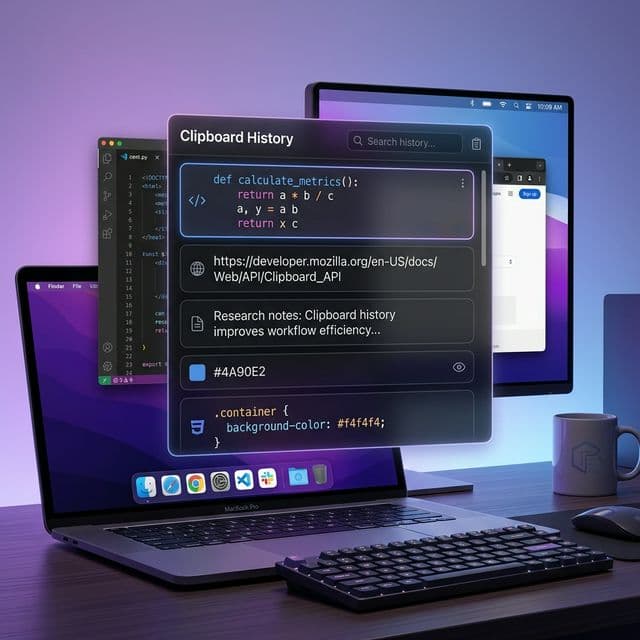
This is where a clipboard manager like Recopy transforms your workflow. Recopy runs quietly in your menu bar and remembers every single thing you copy — text, images, URLs, code snippets, files, colors, and more. Press Option+V to open your full clipboard history, search through past items, and paste anything from minutes, hours, or days ago.
Instead of the traditional copy-switch-paste-switch-copy-switch-paste pattern, a clipboard history lets you batch your copies — copy everything you need first, then switch to your destination and paste each item in sequence. This eliminates constant app-switching, which research shows is one of the biggest productivity drains in knowledge work.
With a clipboard manager, change your pattern from copy > switch > paste > switch > copy > switch > paste to copy > copy > copy > switch > paste > paste > paste. You gather all the content first, then distribute it. This small shift can save 30 minutes or more per day for people who frequently move information between applications.
Use case: Developers pulling values from documentation into code. Writers assembling research from multiple sources into a draft. Designers copying hex colors, asset names, and copy text from a spec into their design tool. Anyone who regularly copies more than one thing in a session — which is virtually everyone.
Quick Reference Cheat Sheet
Cmd+C/Cmd+X/Cmd+V— Copy, Cut, PasteCmd+Option+Shift+V— Paste without formattingCmd+Option+C/Cmd+Option+V— Copy Style / Paste StyleCmd+CthenCmd+Option+V— Move files in FinderCtrl+K/Ctrl+Y— Kill line / Yank (the hidden second clipboard)Cmd+AthenCmd+C— Select All, then CopyCmd+Z/Cmd+Shift+Z— Undo / Redo a paste- Universal Clipboard — Copy on one Apple device, paste on another
Shift+Cmd+Arrow— Precision text selection by line or documentOption+V— Open Recopy clipboard history
Start Building Better Clipboard Habits
You do not need to memorize all 10 of these at once. Pick the two or three that address your biggest daily frustrations — maybe it is Paste and Match Style for the formatting problem, or the Finder move shortcut you never knew existed — and commit to using them for a week. Muscle memory develops quickly.
But if there is one shortcut on this list that delivers the most outsized value, it is clipboard history. The ability to access anything you have previously copied eliminates the anxiety of losing clipboard content and fundamentally changes how you move information around your Mac.
Recopy is a lightweight, native macOS clipboard manager that captures text, images, code, URLs, files, and more — all accessible with a single Option+V shortcut. It is the missing piece that makes all of these other shortcuts even more powerful.