Here is a pattern every developer knows by heart: you find the right Stack Overflow answer, copy a code block, switch to your editor, paste it in, realize you need a second snippet from the same page, switch back, and discover the browser tab has scrolled away from where you were. Multiply that by the dozens of copy-paste cycles in a typical coding session, and you start to see how much friction hides inside the simplest keyboard shortcut we use.
Stack Overflow's own research confirms the scale of this habit. Over a two-week tracking period, one in four visitors copied something within five minutes of landing on a question page — totaling over 40 million copy actions across 7.3 million posts. Copies from code blocks outnumbered copies from surrounding text by a factor of ten. Developers are not just reading documentation. They are extracting working code, constantly.
Yet the default clipboard on every operating system holds exactly one item. Every new copy silently destroys the last. For a profession built on precision and repeatability, that is a staggering limitation. A clipboard manager designed with developers in mind changes the equation entirely — turning a disposable scratch buffer into a searchable, categorized history of everything you have copied.
The Five Clipboard Workflows Every Developer Uses Daily
Before diving into solutions, it helps to name the patterns. Most developer copy-paste activity falls into five distinct workflows, each with its own pain points.
1. Documentation and Reference Copying
You are integrating a new API. The documentation page has the base URL, an authentication header format, a sample request body, and an example response shape. That is four separate copies just to scaffold a single API call. With a single-item clipboard, you either make four round-trips between browser and editor, or you paste each piece into a scratch file first — creating an ad hoc clipboard manager out of an untitled text document.
2. Stack Overflow and Forum Extraction
The Stack Overflow data reveals something interesting: 52.4% of copies come from answers that are not the accepted answer. Developers compare multiple solutions, copying several code blocks before deciding which approach fits. A clipboard history lets you grab three different answers, then review and choose from your history without switching windows again.
3. Terminal Command Sequences
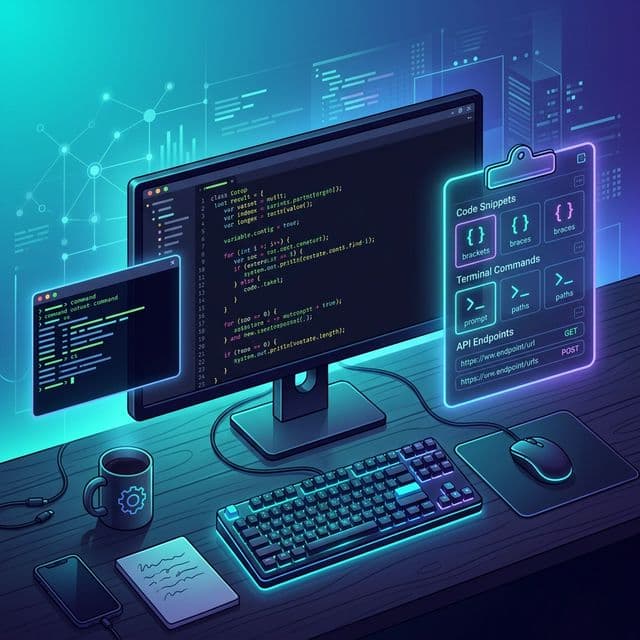
Setting up a development environment, deploying to staging, debugging a production issue — these tasks involve chains of terminal commands copied from READMEs, runbooks, or Slack messages. A single deployment sequence might look like this:
# Build and tag the Docker image
docker build -t myapp:$(git rev-parse --short HEAD) .

# Push to container registry
docker push registry.example.com/myapp:$(git rev-parse --short HEAD)

# Deploy to staging with kubectl
kubectl set image deployment/myapp \
  myapp=registry.example.com/myapp:$(git rev-parse --short HEAD) \
  --namespace=staging

# Verify rollout status
kubectl rollout status deployment/myapp --namespace=staging
Each of those commands is typically copied individually from a wiki or runbook. Without clipboard history, you are scrolling back to the documentation after every single paste. With history, you copy the entire sequence once and pull each command from your clipboard as you need it.
4. Cross-File Refactoring
Refactoring a function signature means copying the new type definition, the updated function, and the modified tests — then pasting each into different files. IDEs handle some of this with automated refactoring, but plenty of restructuring still happens manually, especially when moving code between repositories or converting patterns across frameworks.
5. Configuration and Environment Variables
Database connection strings, API keys, feature flags, environment-specific URLs. Developers copy these values from password managers, cloud consoles, and .env.example files constantly. Losing a 64-character database connection string because you accidentally copied something else is a small frustration that happens far too often.
“Developers spend only 32% of their time writing or reviewing code. The rest goes to build execution, context switching, and coordination. Every tool that reduces context switching gives that time back to actual coding.
— Uber Engineering Productivity Research
The Hidden Cost of Context Switching
The productivity impact of clipboard limitations extends beyond the seconds lost to extra window switches. Research from Atlassian's 2025 developer experience survey ranks context switching between tools as the third-largest productivity killer for engineers. A single interruption — even a brief one like switching to a browser to re-copy something — can cost over 20 minutes of deep focus to recover from.
A 2024 study found that developers estimate losing between 5 to 15 hours per week on unproductive work, with gathering context cited as the top blocker. Clipboard management sits squarely in this category. Every time you copy a value, lose it, and have to track down the source again, you are not just losing the 30 seconds of navigation — you are losing the thread of thought you were holding in your head.
If a developer copies 50 items per day and loses just 10 seconds per re-copy event for items that were overwritten, that adds up to over an hour of lost time per week — not counting the cognitive cost of broken focus. A clipboard manager eliminates this tax entirely.
What Developers Actually Need from a Clipboard Manager
Generic clipboard managers handle text and images well enough for most people. Developers need more. Here are the capabilities that separate a developer-grade clipboard tool from a basic one.
Automatic Code Detection and Syntax Awareness
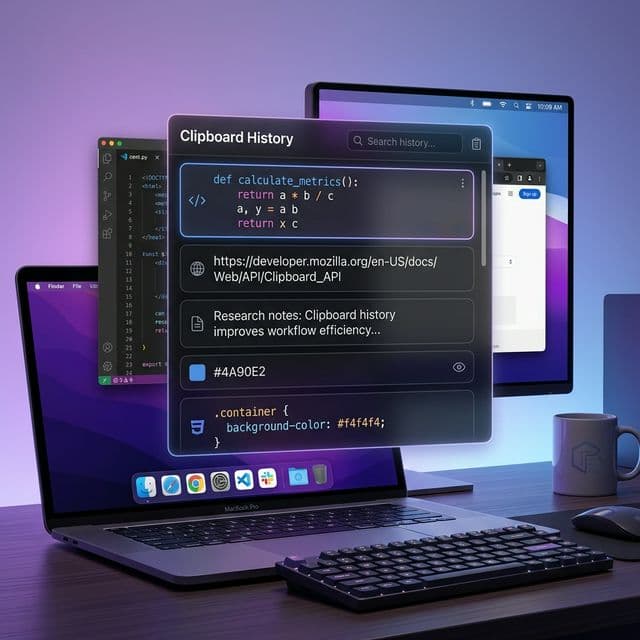
When you copy a block of TypeScript, you want your clipboard manager to recognize it as code — not just as plain text. Recopy uses content classification heuristics to automatically detect code snippets, distinguishing them from plain text, URLs, HTML fragments, and other content types. This means you can later filter your history to show only code snippets when you are looking for that function you copied two hours ago.
Consider a typical React component you might copy from a tutorial or your own project:
interface UserProfileProps {
  readonly userId: string
  readonly showAvatar?: boolean
}

export function UserProfile({ userId, showAvatar = true }: UserProfileProps) {
  const { data: user, isLoading } = useQuery({
    queryKey: ['user', userId],
    queryFn: () => fetchUser(userId),
  })

  if (isLoading) return <ProfileSkeleton />
  if (!user) return null

  return (
    <div className="flex items-center gap-3">
      {showAvatar && <Avatar src={user.avatarUrl} alt={user.name} />}
      <div>
        <p className="font-medium">{user.name}</p>
        <p className="text-sm text-muted">{user.email}</p>
      </div>
    </div>
  )
}
A developer-oriented clipboard manager recognizes this as a code snippet and categorizes it accordingly — making it instantly findable when you search your history later.
Fast, Full-Text Search Across History
Scrolling through a chronological list is fine when you copied something five minutes ago. But what about the database migration command from last Tuesday, or the regex pattern you copied from a blog post three days ago? Full-text search across your entire clipboard history turns your clipboard from a short-term buffer into a long-term reference library.
Recopy indexes all text content for instant search. Type kubectl and every Kubernetes command you have copied in the last year surfaces immediately. Search connection string and find every database URL. This transforms your clipboard history into a personal knowledge base that grows more valuable over time.
Content Type Filtering
Developers copy a wider variety of content types than most users: plain text, rich text, HTML, URLs, images, PDFs, file references, code snippets, color values, and spreadsheet data. Being able to filter your clipboard history by type is essential. Looking for that API endpoint? Filter to URLs. Need that CSS color you copied from a design tool? Filter to colors. Want only the code blocks from today? Filter to code snippets.
Instead of scrolling through hundreds of clipboard entries, use Recopy's content type filter to narrow down to code snippets first, then search within that filtered list. For example, filter to code snippets and search "async" to find every async function you have copied recently.
Building a Developer Clipboard Workflow
Knowing the features is one thing. Integrating them into your daily workflow is what delivers the actual productivity gain. Here is how experienced developers structure their clipboard usage.
The Research-Then-Build Pattern
Instead of copying one thing, switching to your editor, pasting, then going back for the next piece — batch your research. Open the documentation pages, Stack Overflow answers, and example repositories you need. Copy every relevant snippet, command, and configuration value in one pass. Then switch to your editor and pull each item from your clipboard history as you build.
This pattern aligns with how deep work actually functions. You stay in research mode while researching, then stay in coding mode while coding, instead of constantly thrashing between the two.
Terminal Command Archiving
Your shell history is useful but limited — it only captures commands you executed, not commands you copied but decided not to run, or commands you copied from documentation. Your clipboard history fills this gap. Every docker, kubectl, git, and aws command you copy is preserved and searchable, whether you ran it or not.
# Commands you might copy throughout a debugging session:
ssh -L 5432:db-prod.internal:5432 bastion.example.com
psql -h localhost -p 5432 -U app_user -d production
SELECT id, status, created_at FROM orders WHERE status = 'stuck' ORDER BY created_at DESC LIMIT 20;
kubectl logs -f deployment/order-service --namespace=production --since=1h | grep ERROR
A week later, when the same issue recurs, you search your clipboard history for orders or stuck and recover the exact debugging sequence without reconstructing it from memory.
The Multi-Source Integration Pattern
Modern development involves pulling information from many sources in rapid succession: a Figma design token, an API response from Postman, a type definition from your codebase, and a configuration value from your cloud provider's console. Each copy comes from a different application. Without clipboard history, you can only hold one of these at a time. With it, you collect everything you need and assemble it in your editor at your own pace.
A clipboard manager is only useful if it does not break your flow. Recopy is accessible via a global keyboard shortcut (Option+V), so you never need to reach for the mouse or leave your editor. Arrow keys navigate the history, and pressing Enter pastes directly into the active application.
Clipboard Manager vs. Dedicated Snippet Manager: Do You Need Both?
Dedicated code snippet managers like SnippetsLab and massCode are excellent tools for curating a permanent library of reusable code. They offer tagging, folder hierarchies, and IDE integrations. But they solve a different problem than a clipboard manager.
A snippet manager is a deliberate, write-ahead tool — you intentionally save code you know you will reuse. A clipboard manager is an automatic, capture-everything tool — it preserves everything you copy without requiring any extra action. The two are complementary, not competing.
- Snippet manager: curated library of templates, boilerplate, and frequently used patterns you organize intentionally
- Clipboard manager: automatic history of everything you copy, searchable and filterable, with zero extra effort
- Best practice: use your clipboard manager as a capture net, then promote frequently reused items to your snippet manager
Most developers find that a good clipboard manager with code detection and search reduces their need for a dedicated snippet manager significantly. The snippets you actually reuse tend to show up repeatedly in your clipboard history — and a clipboard manager surfaces them automatically.
Practical Tips for Getting Started
If you are new to using a clipboard manager as part of your development workflow, here are concrete steps to build the habit.
- Set up the global shortcut first. Muscle memory is everything. Commit to using Option+V instead of Cmd+V for a full day. Within a week, reaching for your clipboard history will feel as natural as autocomplete.
- Start noticing multi-copy moments. Every time you switch windows to re-copy something you already copied earlier, that is a signal. Your clipboard history already has it — you just need to check there first.
- Use search before you browse. Scrolling through history works, but searching is faster. If you remember any keyword from what you copied, type it. Recopy's search is near-instant, even across thousands of items.
- Filter by content type during focused work. When you are wiring up API endpoints, filter to URLs. When you are writing tests, filter to code snippets. Narrowing the view reduces noise and speeds up retrieval.
- Trust the history length. With Recopy storing up to 50,000 items and retaining history for a full year by default, you do not need to worry about losing something. Copy freely, knowing it is all there when you need it.
The Compound Effect of Clipboard Mastery
The individual time savings from a clipboard manager are modest — a few seconds here, a avoided window switch there. But developer productivity research consistently shows that these micro-interruptions compound. Reducing context switches does not just save the switching time itself; it preserves the cognitive state that enables deep, focused work.
A developer who stops losing clipboard contents, stops re-navigating to documentation, and stops reconstructing terminal commands from memory is a developer who spends more time in flow state. And flow state is where the best code gets written.
Your clipboard is the most frequently used data transfer mechanism on your machine. It deserves better than a single-slot buffer that forgets everything the moment you copy something new. Give it a proper tool, build the muscle memory, and watch the small wins accumulate into a meaningfully faster development workflow.