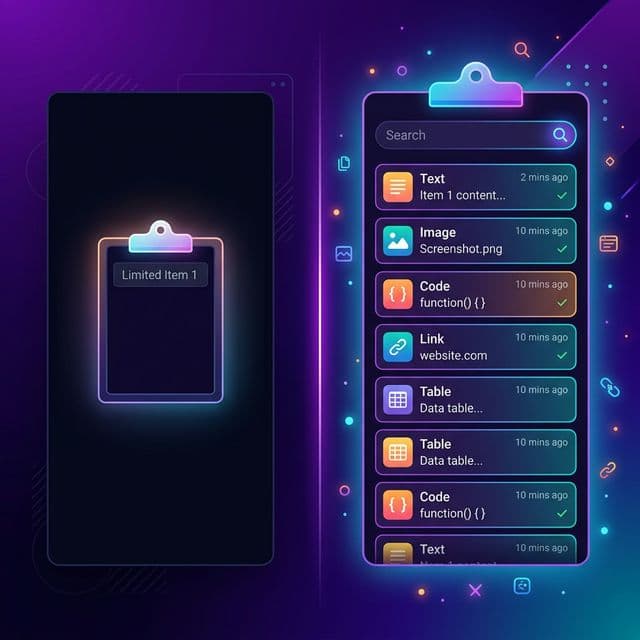
You copy a URL. Then you copy a code snippet. The URL is gone. You switch back to find it, copy it again, switch windows, paste it, then go back for the next piece. Sound familiar? This repetitive dance of copying, switching, and re-copying is something most Mac users accept as normal. But it doesn't have to be. The default macOS clipboard holds exactly one item at a time — a design limitation that has remained essentially unchanged since the original Macintosh in 1984. For anyone who works with text, code, images, or files throughout the day, a clipboard manager isn't a luxury. It's a necessity.
The Hidden Cost of a Single-Item Clipboard
Research suggests the average office worker performs roughly 200 copy-paste actions per day — around 1,000 per week. Every time you copy something new, the previous item vanishes. There's no list to scroll through, no way to retrieve the text you copied five minutes ago unless you pasted it somewhere first.
The real cost isn't just the lost clipboard item. It's the context switching required to recover it. A study by the University of California, Irvine found that it takes an average of 23 minutes and 15 seconds to fully regain focus after an interruption. While hunting for a lost clipboard item is a smaller disruption than a full task switch, research from Qatalog and Cornell shows that even toggling between apps takes about 9.5 minutes to recover from. Microsoft researchers found that the typical knowledge worker toggles between applications nearly 1,200 times per day, spending almost four hours per week just reorienting themselves.
“Knowledge workers lose an estimated 51% of their work hours to tedious, low-value tasks like copying and pasting, managing emails, and data entry.
— Talker Research / HP Survey of 2,000 Knowledge Workers, 2025
A clipboard manager eliminates one of the most frequent sources of this friction. Instead of copying one thing, pasting it, switching back, copying the next — you copy everything you need in sequence and paste each item when you're ready. The workflow becomes linear instead of recursive.
What macOS Gets Wrong About the Clipboard
Apple has long positioned macOS as the operating system for creative professionals and power users. Yet its clipboard has remained stubbornly primitive. Here's what's missing from the default experience:
- No history — Copy something new and the previous item is gone forever. There is no built-in way to view or recover past clipboard contents.
- No search — Even if you could see your history, there's no way to search through it. You'd have to remember exactly what you copied and when.
- No content type awareness — The clipboard doesn't distinguish between plain text, rich text, images, URLs, code, or files. Everything is treated the same way.
- No persistence across restarts — Reboot your Mac and your clipboard is wiped clean. Nothing survives a restart.
- No visual previews — You can't see what's on your clipboard without pasting it somewhere. The only way to check is
Cmd+Vinto a scratch document.
Apple did introduce a clipboard history feature in macOS 26 Tahoe, accessible through Spotlight. It's a welcome acknowledgment that users need this functionality. However, the built-in version automatically deletes your entire history after eight hours, offers no persistent storage, and early reviews describe the image handling as unreliable. For anyone who needs to reference something they copied yesterday — or last week — it falls short.
Windows has had a built-in clipboard history (Win+V) since Windows 10 in 2018. macOS didn't add any form of clipboard history until macOS 26 in 2025 — and even then, it auto-deletes after 8 hours.
How a Clipboard Manager Transforms Your Workflow
A dedicated clipboard manager for Mac solves every limitation above and adds capabilities you didn't know you needed. Once you've used one for a week, going back to a single-item clipboard feels like switching from a modern IDE to Notepad. Here are the workflows that change the most:
Research and Writing
When researching a topic, you might copy a dozen URLs, several quotes, a few statistics, and some reference names — all from different tabs and documents. Without a clipboard manager, you'd need to paste each one immediately or lose it. With clipboard history, you copy freely as you browse, then switch to your writing app and pull each item from your history. No more tab-switching ping-pong.
Software Development
Developers copy and paste constantly — variable names, function signatures, API keys, stack traces, SQL queries, documentation snippets. A clipboard manager with content type detection automatically categorizes code snippets separately from URLs or plain text, making it easy to find that regex pattern you copied three hours ago. Developers who use clipboard managers consistently report it becomes the first tool they install on any new machine.
Design and Creative Work
Designers regularly copy hex color codes, image assets, text content, and file paths between applications like Figma, Photoshop, and their browser. A clipboard manager that supports images, colors, and file references means you can copy multiple assets and paste them in sequence without switching back to the source every time.
Data Entry and Form Filling
If you need to copy five fields from a spreadsheet and paste them into five different form inputs, a single-item clipboard forces you to switch back and forth five times. With a clipboard manager, you copy all five values, then paste each one in order from your history. What took ten window switches now takes zero.
Instead of copy-switch-paste-switch-copy-switch-paste, try batch copying: gather everything you need first, then switch to your destination and paste from history. This "copy-first" approach can cut context switches by 50% or more in data-heavy tasks.
What to Look for in a macOS Clipboard Manager
Not all clipboard managers are created equal. When evaluating the best clipboard manager for your Mac workflow, here are the features that matter most:
- Speed — The clipboard manager must capture new items instantly. Any noticeable delay between copying and the item appearing in your history creates friction. Look for sub-second capture times.
- Large history capacity — A clipboard manager that only stores 25 or 50 items isn't much better than having none. You want thousands — or tens of thousands — of items available so you can find something from last week or last month.
- Search — As your history grows, search becomes critical. You should be able to type a few characters and instantly filter your history to find the item you need.
- Content type support — Text-only clipboard managers miss half the picture. Look for support across plain text, rich text, HTML, URLs, images, PDFs, files, code snippets, colors, and spreadsheet data.
- Privacy and local storage — Your clipboard contains some of the most sensitive data on your computer — passwords, API keys, personal messages, financial information. A clipboard manager should store everything locally, not in the cloud.
- Keyboard-driven interface — Power users live on the keyboard. The best clipboard managers let you summon your history, search, navigate, and paste without touching the mouse.
- Lightweight resource usage — A clipboard manager runs constantly in the background. It should use minimal CPU and memory so you never notice it's there.
How Recopy Addresses These Needs
We built Recopy because existing clipboard managers either sacrificed speed for features or sacrificed features for speed. Recopy is designed to do both. It monitors your clipboard with a 500-millisecond polling interval, capturing new items almost the instant you copy them. Your history stores up to 50,000 items — enough for months of heavy use — all persisted locally on your Mac with no cloud sync, no account required, and no data leaving your machine.
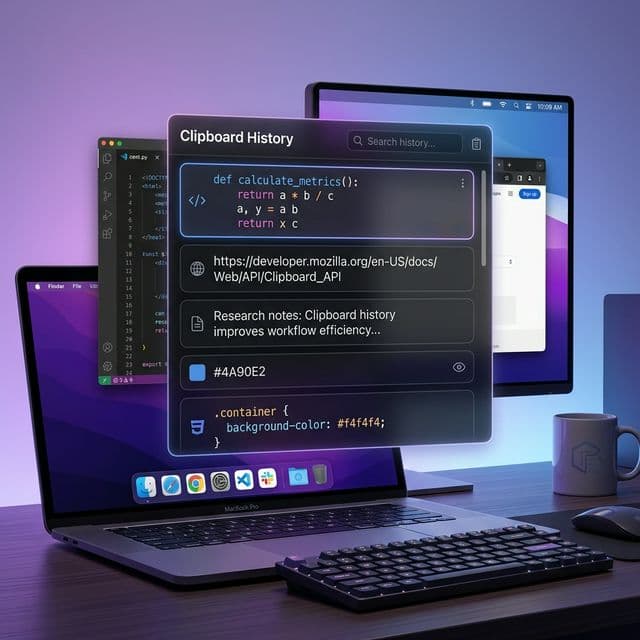
Recopy automatically detects and categorizes 10 distinct content types: plain text, rich text, HTML, URLs, images, PDFs, file references, code snippets, colors, and spreadsheet data. Each type gets its own icon and optimized preview, so you can visually scan your history and find what you need at a glance. A built-in search with 300-millisecond debounce lets you filter thousands of items in real time.
The entire interface is keyboard-driven. Summon your clipboard history with a global shortcut, navigate with arrow keys, search by typing, and paste with Enter — all without reaching for the mouse. Recopy lives in your menu bar, uses minimal resources, and stays out of your way until you need it.
Recopy stores all clipboard data in a local SQLite database on your Mac. There are no cloud services, no analytics on your clipboard content, and no account signup. Your copied data stays on your machine — period.
The Productivity Math
Let's be conservative. Say a clipboard manager saves you just 5 context switches per hour by eliminating the need to re-copy lost items and toggle between windows. If each minor context switch costs even 15 seconds of lost momentum (far less than the 9.5-minute average for full app switches), that's 75 seconds per hour — roughly 10 minutes per workday. Over a year, that's more than 40 hours of recovered productive time. And that's the conservative estimate.
The real benefit is harder to quantify: reduced cognitive load. When you know your clipboard history is always there, you stop worrying about losing copied items. You copy more freely, research more fluidly, and write more continuously. The mental overhead of managing your clipboard disappears entirely.
According to the American Psychological Association, interruptions as short as five seconds can triple error rates in cognitive work. Every time you break focus to re-find and re-copy something, you're not just losing time — you're introducing errors into your work. A clipboard manager removes that class of interruption entirely.
Start Treating Your Clipboard as a Tool, Not a Limitation
The single-item clipboard is one of the oldest limitations in personal computing. It made sense in 1984 when memory was measured in kilobytes. It makes no sense in 2026 when your Mac has gigabytes of RAM and terabytes of storage. A clipboard manager transforms your clipboard from a fragile, single-use scratchpad into a persistent, searchable, organized extension of your memory.
If you spend your day working with text, code, images, or data — and if you've ever lost a copied item at the worst possible moment — a clipboard manager is the single most impactful productivity tool you can add to your Mac. Try Recopy and see the difference a real clipboard history makes.