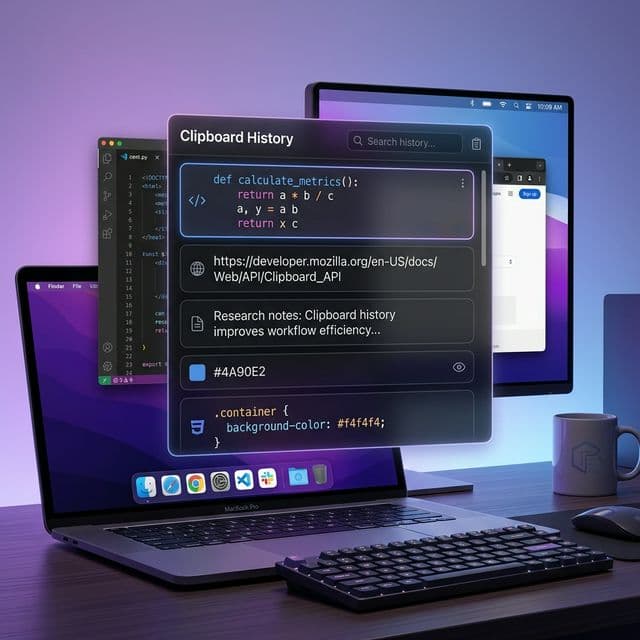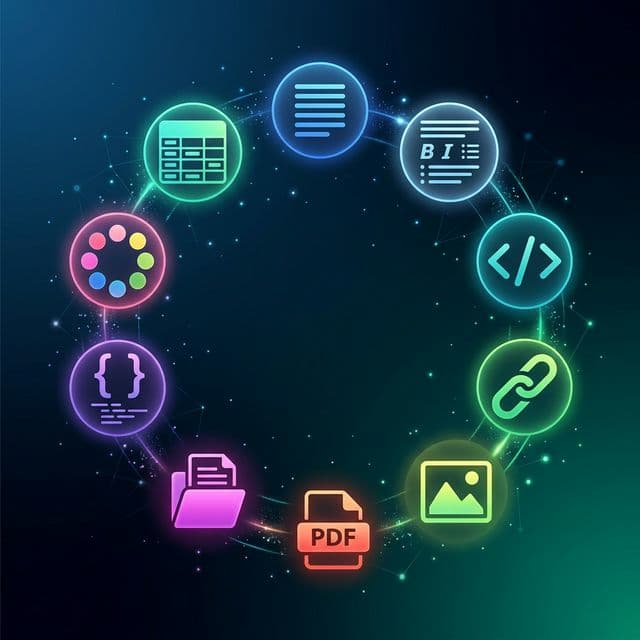
When you press Cmd+C on your Mac, you probably think of it as copying text. But the macOS clipboard is far richer than that. Behind the scenes, NSPasteboard can carry dozens of data formats simultaneously: styled text, raw HTML, image buffers, file URLs, color values, and more. Most clipboard managers treat all of that as a single blob. Recopy does not.
Recopy recognizes ten distinct content types, classifies every copy automatically, and preserves the original format so you can paste it back exactly the way it was captured. Whether you are a developer juggling code snippets, a designer sampling brand colors, or a researcher collecting links and PDFs, Recopy keeps your clipboard organized by what your data actually is.
You never need to tag or label your copies. Recopy inspects the pasteboard types attached to each copy event and classifies the content instantly. The filter bar in the history panel lets you narrow down by type with a single click.
Let us walk through each of the ten content types, what they capture, and how they fit into real workflows.
1. Plain Text
Plain text is the workhorse of the clipboard. Terminal commands, passwords from a manager, quick notes dashed off in a text editor, commit messages, chat excerpts: these all land as public.utf8-plain-text on the pasteboard. Recopy stores the raw string and displays a clean preview in your history panel.
Because plain text copies are by far the most frequent, Recopy deduplicates consecutive identical copies using SHA-256 hashing. If you accidentally hit Cmd+C twice on the same selection, you will still see only one entry. This keeps your history tidy without any effort on your part.
2. Rich Text
Copy a paragraph from Pages, Google Docs, or an email and you are copying rich text: bold, italic, font sizes, text colors, and paragraph spacing all travel with the content. On macOS this is represented as RTF (com.apple.rtf) or RTFD data.
Recopy preserves the full RTF payload. When you paste a rich text clip back, the formatting arrives intact. No more losing your carefully styled headings because a clipboard manager stripped them down to plain text. If you do want plain text, Recopy lets you paste as unformatted text instead.
3. HTML
When you copy content from a web browser, the clipboard usually receives both an HTML representation and a plain text fallback. Recopy detects the public.html type and categorizes the entry as HTML. This is valuable for anyone who works with web content regularly.
Front-end developers copying markup from DevTools, content editors moving formatted text between CMS platforms, and email marketers pulling in HTML templates all benefit from having the raw HTML preserved and searchable in their clipboard history. Recopy displays an HTML indicator so you can tell at a glance which copies carry markup.
4. URLs
Links are not just text that happens to start with https://. When an application places a public.url type on the pasteboard, Recopy recognizes it as a proper URL. It also runs a secondary check: if the plain text content looks like a valid HTTP or HTTPS URL with a hostname, Recopy reclassifies it even when the source app did not set the URL type explicitly.
This means your history panel shows a dedicated link icon next to every URL, making it trivial to scan through dozens of recent copies and find the API endpoint or documentation link you need. Researchers collecting reference URLs, marketers gathering campaign links, and developers hopping between localhost endpoints all get a cleaner, faster search experience.
5. Images
Recopy handles images in six formats: PNG, JPEG, TIFF, GIF, WebP, and HEIC. When you take a screenshot with Cmd+Shift+4 and copy it, grab an image from a browser, or export a selection from a design tool, Recopy captures the binary data and generates a 200 x 200 pixel JPEG thumbnail for the history panel.
Thumbnails are generated asynchronously so the capture never slows down your workflow. The original full-resolution image is stored using SwiftData external storage, meaning large screenshots do not bloat the database file. When you paste the image back, you get the original quality, not the thumbnail.
Copy a UI mockup from Figma, switch to Slack, and press Option+V to open Recopy. You can scroll back through every image you have copied today, preview any of them in a floating window, and paste the one you need. No more re-exporting assets because you copied something else in between.
6. PDFs
Copying content from Preview, annotating a research paper, or dragging a PDF into a presentation often places com.adobe.pdf data on the clipboard. Recopy detects this type and stores the PDF payload with a generated thumbnail so you can visually identify the document in your history.
If you copy a PDF file from Finder rather than inline content, Recopy initially classifies it as a file reference and then reclassifies it to PDF based on the file extension. Either way, you end up with a searchable PDF entry in your history that can be pasted back wherever you need it.
7. File References
Copying a file in Finder (or any app that puts a public.file-url on the pasteboard) creates a file reference entry. Recopy records the file path and generates a QuickLook thumbnail when possible. This covers documents, archives, design files, and any non-video file on your system.
One important design decision: Recopy always rejects video files. Formats like MP4, MOV, AVI, and MPEG are filtered out during capture. Video files are typically large and rarely need clipboard history. Skipping them keeps your database lean and your history focused on content you will actually paste again.
8. Code Snippets
This is where Recopy gets especially useful for developers. When plain text arrives on the clipboard, Recopy runs a heuristic analysis on the content. It scans the first twenty lines looking for indentation patterns, language keywords (func, const, class, import, async, and more), and structural characters like curly braces and arrow operators.
If the content scores above a threshold, Recopy automatically reclassifies it from plain text to code snippet. You never need to tag it yourself. The result is that your history separates prose from code, so you can filter to just code and find that function you copied three hours ago without scrolling through dozens of text entries.
// Copied from your editor at 2:15 PM — Recopy auto-detects this as code
export async function fetchUserProfile(userId: string): Promise<UserProfile> {
  const response = await fetch(`/api/users/${userId}`)

  if (!response.ok) {
    throw new Error(`Failed to fetch profile: ${response.status}`)
  }

  return response.json()
}
Copy the snippet above from VS Code or any editor, and Recopy will classify it as a code snippet based on the export, async, function, const, and await keywords combined with curly braces and indentation. Later, when you filter your history to "Code" entries, it will be right there waiting.
“A clipboard manager that understands the difference between a paragraph of prose and a block of code is not a luxury. For developers who copy and paste dozens of times a day, it is the difference between searching and finding.
— The case for content-aware clipboard history
9. Colors
The macOS color picker (accessible in many native apps) places com.apple.cocoa.pasteboard.color on the clipboard when you copy a color. Recopy captures this as a dedicated color entry and stores the hex value. Designers working in Xcode, Interface Builder, or any AppKit-based tool can copy colors and find them later in their clipboard history.
This is a niche but genuinely useful feature. If you are building a design system, sampling colors from different mockups, or trying to match a brand color across applications, having a history of every color you have copied beats keeping a sticky note with hex codes. Recopy shows a color swatch in the history row so you can identify colors visually without reading the hex string.
10. Spreadsheet Data
When you copy cells from Numbers, Excel, or Google Sheets, the clipboard carries tab-separated values alongside other formats. Recopy detects the NSPasteboardType.tabularText type and classifies the entry as spreadsheet data. This also covers TSV and CSV content copied from data tools and terminal output.
For data analysts and product managers who frequently move tables between spreadsheets, reports, and Slack messages, having spreadsheet data appear as its own category in clipboard history is a meaningful time-saver. You can filter to "Tables" and find the exact dataset you copied earlier without parsing through walls of plain text.
How Automatic Detection Works
Recopy's content classifier evaluates every copy event in a specific priority order. This order matters because macOS applications often place multiple types on the clipboard simultaneously. For example, copying a file in Finder puts a file URL, a TIFF preview, and a plain text path all on the same pasteboard. Without a well-defined priority, the classifier might label a Finder file copy as an image because of the TIFF preview.
- PDF is checked first because PDF data is unambiguous and should never be downgraded to an image or text.
- File References come before images to prevent Finder file thumbnails from being misclassified as standalone images.
- Images are checked next across six formats (PNG, JPEG, TIFF, GIF, WebP, HEIC).
- URLs are prioritized over rich text and HTML because browsers often attach styled representations alongside the URL type.
- Rich Text and HTML follow, capturing formatted content from editors and web pages.
- Colors and Spreadsheets are checked for their specific pasteboard type identifiers.
- Plain Text is the fallback. If it passes the code detection heuristic, it gets promoted to Code Snippet.
This cascading approach means you always get the most specific, most useful classification. A screenshot from Chrome will not be mislabeled as a URL just because the browser also put a link on the pasteboard.
Filtering and Searching by Type
With ten content types in your history, the filter bar becomes essential. Recopy's history panel lets you tap a content type label (Text, Rich, HTML, URLs, Images, PDFs, Files, Code, Colors, Tables) to instantly narrow your view. Combined with the text search field, you can find a specific code snippet among thousands of history entries in seconds.
The filter works on top of the full @Query-backed history, so it is fast regardless of how many items you have stored. And because Recopy supports up to 50,000 items with configurable retention periods, even power users with months of history can filter and search without lag.
Real-World Workflows
The Developer
You are debugging an API integration. Over the course of an hour you copy a curl command from Slack, an error message from the terminal, a JSON response from Postman, a code fix from Stack Overflow, and an endpoint URL from your browser. Without Recopy, each copy overwrites the last. With Recopy, you press Option+V, filter to Code, and paste the fix. Then you switch to URLs and grab the endpoint. Every piece of context you copied is still there.
The Designer
You are iterating on a landing page. You copy a hero image from Figma, sample three brand colors from the style guide, grab a headline from the copy doc, and copy an SVG icon from Sketch. Recopy classifies each one: image, color, color, color, rich text, image. Later, when you need the second color you sampled, you filter to Colors and it is right there with a visual swatch. No need to go back to the style guide.
The Researcher
You are writing a literature review. Over a week you copy quotes from PDFs in Preview, URLs from Google Scholar, formatted citations from Zotero, and data tables from published results. Recopy keeps every type organized. When you sit down to write, you filter by URLs to build your reference list, switch to plain text for the quotes, and check spreadsheet entries for the data tables. Your clipboard history becomes a structured research notebook.
Getting the Most Out of Content Types
- Use the filter bar liberally. Do not scroll through everything. Tap the content type you need and let Recopy narrow the list.
- Trust the auto-detection. Recopy's classifier is tuned to prioritize the most specific type. If something is classified as a code snippet, it genuinely matched the heuristic for code structure.
- Preview before pasting. Press Space or click a row to open the preview window. Images show at full resolution, code shows with readable formatting, and colors show as a large swatch.
- Use keyboard shortcuts. Option+V opens the panel, arrow keys navigate, and Enter pastes. Combined with the filter bar, you can find and paste any content type in under two seconds.
- Configure content types. If you never copy spreadsheet data, you can disable that content type in Settings to keep your history focused on the types that matter to you.
Open Recopy Settings and navigate to the Content Types section. You can enable or disable individual types to tailor capture to your workflow. Disabled types will be ignored during clipboard monitoring, so your history only contains what you actually use.
The macOS clipboard is more powerful than most people realize. Every copy event can carry rich text, images, links, and structured data all at once. Recopy is built from the ground up to respect that richness, automatically classify it, and give it back to you exactly when you need it. Ten content types, zero manual tagging, and a history that actually understands what you copied.