Think about the last time you copied something, switched to another app, copied something else, and then realized you needed the first thing again. You switched back, found the text, copied it again, switched forward, pasted it, and then had to go back again for the second item. This micro-frustration happens so often that most people have stopped noticing it. But your brain notices. Your productivity notices. And over the course of a week, those lost seconds compound into lost hours.
The default clipboard on macOS holds exactly one item. Copy something new and the old item vanishes — gone forever, no undo, no history. For an operating system that otherwise bends over backward to protect your data with autosave, versioning, and Time Machine, the clipboard remains stubbornly stuck in the 1980s. A clipboard history app changes that equation entirely, and the productivity difference is far larger than most people expect.
The Hidden Cost of a Single Clipboard
Research on context switching paints a striking picture. The average knowledge worker toggles between applications roughly 1,200 times per day — about once every 24 seconds during working hours. After each interruption, it takes an average of 23 minutes and 15 seconds to fully refocus on the original task. While not every clipboard-related switch triggers a full 23-minute recovery, even the micro-interruptions add up. Studies estimate that digital workers spend nearly four hours per week just reorienting themselves after switching apps — about 9% of their annual work time.
“If clipboard history saves each person just 10 minutes per day, that is nearly an hour per week recovered. For a 20-person team, that is 17 hours of reclaimed productivity every single week.
— RPM Computing, workplace productivity analysis
Now consider how many of those 1,200 daily app switches exist solely because you needed to re-copy something the clipboard already forgot. You are not switching to do new work — you are switching to redo work. A clipboard history app eliminates an entire category of unnecessary context switches by keeping everything you have copied available at your fingertips.
A Day in the Life: Single Clipboard vs. Clipboard History
To make the difference concrete, let us follow three professionals through a typical morning — first without clipboard history, then with it.
The Developer: Wiring Up an API Integration
Without clipboard history: Sam is building a REST API endpoint. He copies a database field name from the schema file, pastes it into the controller, then goes back to copy the table name. He realizes he also needs the field type he copied a moment ago — but it is gone. He switches back to the schema, locates the line again, copies it, switches back. Then he opens Stack Overflow, copies a code snippet for input validation, pastes it, and realizes the snippet replaced the import statement he had just copied from another file. He opens that file again. Each round trip takes 15–30 seconds. Over a morning of integration work, he makes roughly 40 of these unnecessary trips — that is 10 to 20 minutes of pure friction.
With clipboard history: Sam copies the field name, the table name, the field type, and the import statement in sequence. He never switches back. When he needs any of those items, he presses a shortcut, sees his full clipboard history, and picks the one he wants. The Stack Overflow snippet sits right alongside his own code in the history. The same integration takes noticeably less time, and — more importantly — Sam stays in flow state the entire time.
The Writer: Restructuring an Article Draft
Without clipboard history: Maya is reorganizing a 3,000-word article. She cuts paragraph A and needs to paste it four sections down, but first she has to copy a URL to insert as a citation. Paragraph A is now gone from the clipboard. She presses Cmd+Z repeatedly to undo the cut, re-copies the paragraph, scrolls down, pastes it, then goes back for the URL. She repeats this juggling act for every structural change, sometimes opening a scratch document just to temporarily park text. The restructuring that should take 20 minutes stretches to 45.
With clipboard history: Maya cuts paragraph A, copies the URL, copies a pull quote she wants to relocate, and copies a heading she is renaming. All four items remain accessible. She scrolls through the document once, placing items where they belong by selecting from her clipboard history. No scratch file. No undo chains. The restructuring finishes in the 20 minutes it should have taken.
The Designer: Building a Style Guide
Without clipboard history: Lena is documenting a brand style guide. She copies a hex color value from Figma, pastes it into the guide, goes back for the next color, copies it, pastes, goes back. She has 14 brand colors. That is 28 app switches just for the colors — before she even starts on typography values, spacing tokens, or component names. Each switch breaks her train of thought as she verifies she grabbed the right value.
With clipboard history: Lena copies all 14 hex values in a single pass through Figma, then switches to the style guide document once. She pastes each color from her clipboard history in order. The 28 switches collapse into 2. She does the same for typography and spacing, finishing the style guide in a fraction of the time.
The productivity gain is not about pasting faster — it is about eliminating unnecessary app switches. Every time you avoid switching back to re-copy something, you save 15–30 seconds of mechanical overhead and you protect the mental context you have built up for the task at hand.
Why the Default Clipboard Has Not Changed
Apple has improved nearly everything about macOS over the past two decades — except the clipboard. Universal Clipboard, introduced with macOS Sierra, lets you copy on your iPhone and paste on your Mac, but it still only holds a single item. The operating system treats the clipboard as a transient buffer, not a productivity tool. There is no built-in history, no search, no categorization.
This is a design philosophy issue, not a technical limitation. Apple prioritizes simplicity, and a single-item clipboard is about as simple as it gets. But simplicity stops being a virtue when it forces you into repetitive busywork. Power users have known this for years, which is why the clipboard manager category has existed on macOS for over a decade. What has changed recently is how sophisticated these tools have become — and how much more they can do beyond simply remembering your last few copies.
What a Modern Clipboard History App Actually Does
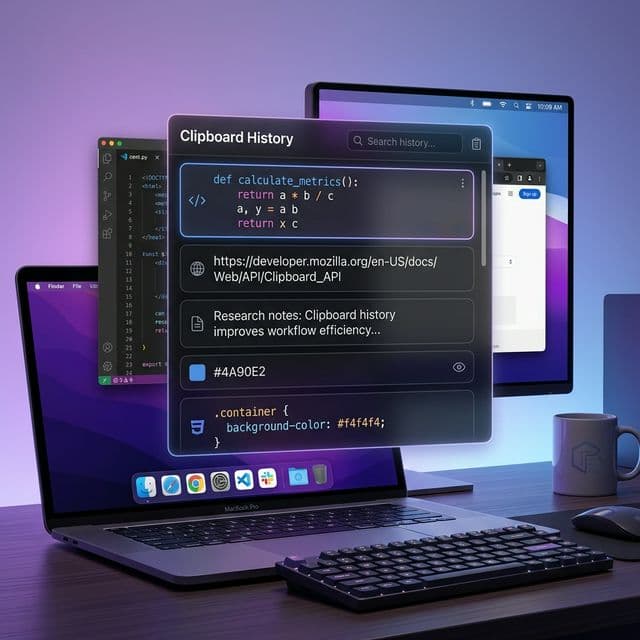
A clipboard history app runs quietly in the background, capturing everything you copy — text, images, files, URLs, code snippets, color values, rich text, and more. The best ones go well beyond a simple list of recent items. Here is what separates a modern clipboard manager from the rudimentary "last 10 items" approach:
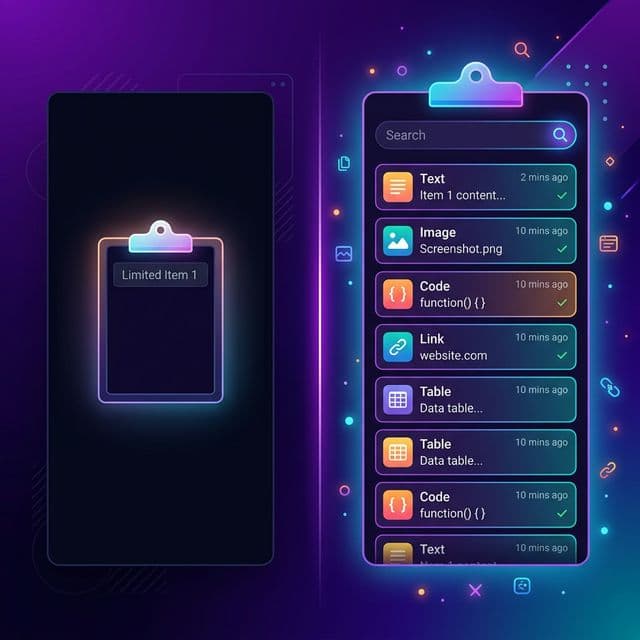
- Deep history: Instead of holding 10 or 25 items, a capable clipboard manager stores tens of thousands of entries. Recopy, for example, retains up to 50,000 items — meaning something you copied weeks or even months ago is still instantly retrievable.
- Instant search: With thousands of items in history, search becomes essential. You type a few characters and the list filters in real time. Need that API key you copied last Tuesday? Search for it by any fragment you remember.
- Content type awareness: Modern clipboard managers distinguish between plain text, rich text, images, URLs, code, PDFs, colors, and file references. You can filter by type to quickly find, say, all the images you have copied today.
- Smart deduplication: If you copy the same thing twice, the app recognizes the duplicate and moves the existing entry to the top rather than cluttering your history with identical items.
- Keyboard-first design: The best clipboard managers are built for speed. You invoke them with a global shortcut, navigate with arrow keys, and paste with Enter — never touching the mouse. The whole interaction takes under two seconds.
- Privacy controls: Sensitive items can be excluded. Retention policies automatically purge old entries. Your clipboard history stays on your machine, not in someone else's cloud.
The Productivity Math: Small Savings, Big Impact
Let us be conservative and assume a clipboard history app saves you just 10 minutes per day. That is the estimate from workplace productivity analyses, and anecdotally, heavy users report saving considerably more. Here is what 10 minutes a day looks like over time:
- Per week: 50 minutes — nearly a full hour of recovered focus time
- Per month: 3.5 hours — half a workday returned to meaningful tasks
- Per year: 43 hours — more than a full work week saved annually
And these are just the direct time savings from fewer app switches. The indirect benefit — staying in flow state rather than constantly context-switching — may be even more valuable. Research from the University of California, Irvine found that people compensate for interruptions by working faster, but this comes at the cost of higher stress and frustration. A tool that removes interruptions does not just save time; it makes the time you spend working feel better.
For one day, pay attention every time you switch apps just to re-copy something. Keep a tally mark on a sticky note. Most people are genuinely surprised by the number — it is usually somewhere between 20 and 50 times per day. That awareness alone makes the case for clipboard history self-evident.
Beyond History: How Clipboard Managers Unlock New Workflows
Once you have a reliable clipboard history, entirely new workflows become possible — things you would never attempt with a single clipboard because the overhead would be absurd:
- Batch collection: Copy a dozen items from various sources — research notes, URLs, quotes, data points — and then switch to your destination and paste them all. One collection phase, one assembly phase, zero back-and-forth.
- Reference retrieval: That error message you copied three days ago, the terminal command you used last week, the hex color from a design review yesterday — all searchable, all available. Your clipboard history becomes a lightweight personal knowledge base.
- Template reuse: Frequently used responses, boilerplate code, email signatures, and standard phrases live in your clipboard history permanently. Copy once, paste forever.
- Cross-project transfer: Working across multiple codebases or documents? Copy what you need from each and assemble freely, without the tab-switching dance.
What to Look for in a macOS Clipboard History App
The macOS clipboard manager landscape ranges from simple open-source utilities to full-featured productivity tools. When evaluating options, prioritize these qualities:
- Speed: The clipboard manager must be faster than switching apps to re-copy. If invoking and searching your history takes longer than the old way, you will not use it. Look for sub-200ms launch and real-time search filtering.
- Capacity: A manager that only holds 25 items is better than nothing, but you will quickly outgrow it. Tens of thousands of items with fast search is the modern baseline.
- Content type support: Text-only managers miss half the picture. Images, files, rich text, and code are all part of a real workflow.
- Native macOS design: A clipboard manager is something you use hundreds of times a day. It should feel like a natural extension of the operating system, not a bolt-on from another platform.
- Privacy: Your clipboard contains passwords, personal messages, and sensitive data. The app should store everything locally, offer configurable retention policies, and never phone home.
- Keyboard-driven interaction: Mouse-based clipboard managers add friction instead of removing it. The best tools are fully operable from the keyboard with a global shortcut to invoke them instantly.
Recopy: Built for the Workflows That Matter
Recopy was designed from the ground up for macOS users who want clipboard history to be invisible until needed and instant when invoked. It stores up to 50,000 items locally with instant search, supports 10 content types (text, rich text, HTML, URLs, images, PDFs, files, code, colors, and spreadsheet data), and runs entirely on your machine — no accounts, no cloud sync, no telemetry.
The global shortcut (Option+V) brings up your full history in a native macOS panel. Start typing to search, use arrow keys to navigate, and press Enter to paste directly into the frontmost app. The entire interaction — from shortcut to paste — takes under two seconds. Smart deduplication keeps your history clean, configurable retention policies let you control how long items stick around, and content type filtering lets you narrow results to exactly what you need.
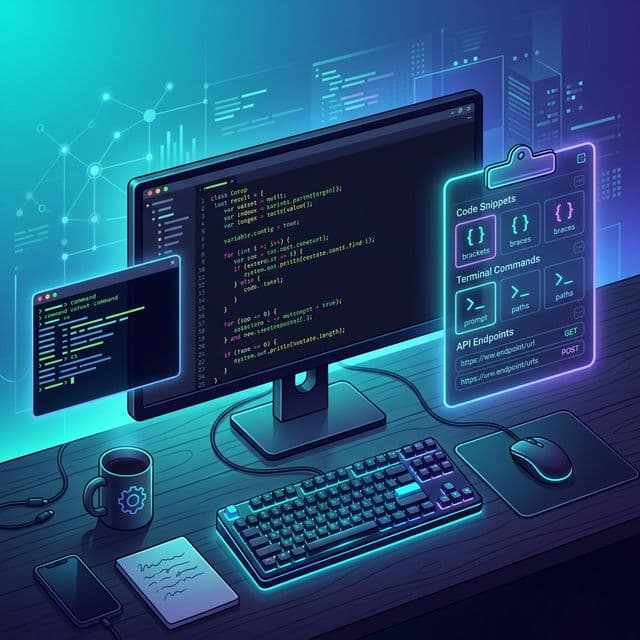
For developers, Recopy automatically detects code snippets using language heuristics, preserving syntax context. For designers, it captures hex colors as a distinct content type. For writers, rich text and plain text are stored separately, so you always paste in the format you need.
The Bottom Line: What You Gain by Switching
The gap between a single clipboard and clipboard history is not a minor convenience improvement — it is a fundamental shift in how you interact with information on your Mac. Here is what changes:
- Time: Save 40+ hours per year by eliminating redundant app switches and re-copying.
- Focus: Stay in flow state instead of constantly breaking concentration to retrieve previously copied content.
- Confidence: Copy freely, knowing nothing is lost. No more "parking" text in scratch files or keeping extra windows open as clipboard insurance.
- Speed: Multi-copy, then multi-paste. Batch your clipboard work instead of interleaving it with your actual work.
- Memory: Stop trying to remember where you copied something from. Search your history instead.
The single-item clipboard is a relic of an era when computers had kilobytes of memory and multitasking meant running two programs. Modern knowledge work demands a modern clipboard. Once you experience clipboard history, the old way of working feels like typing with one finger — technically possible, but no one would choose it voluntarily.