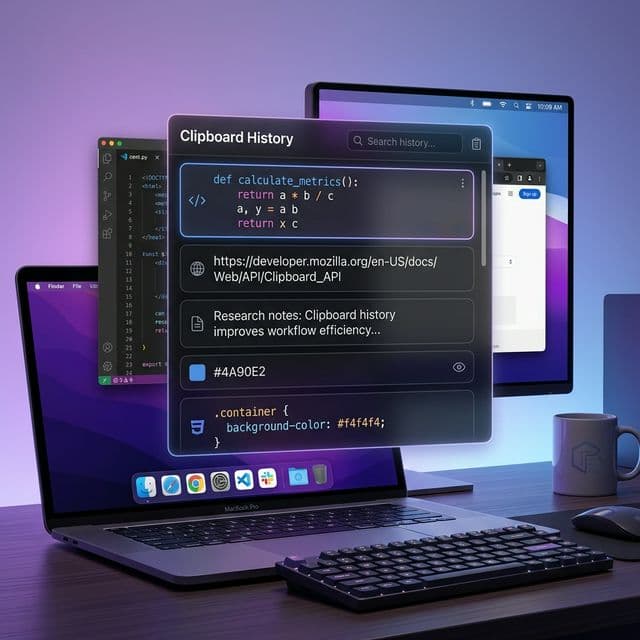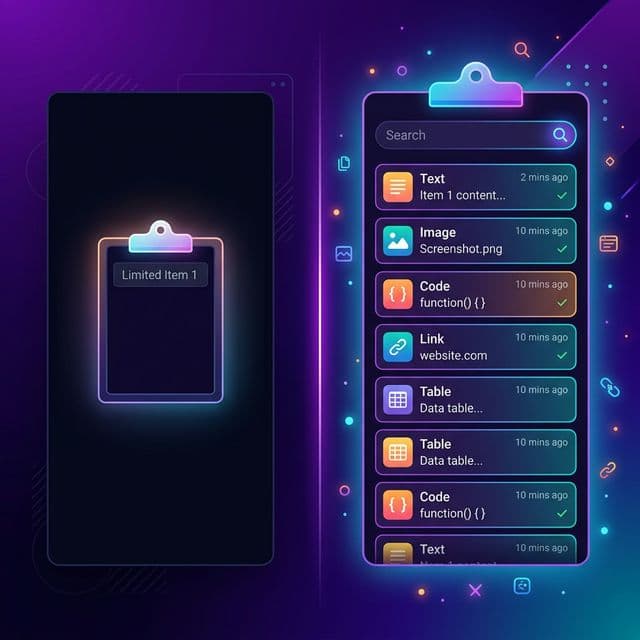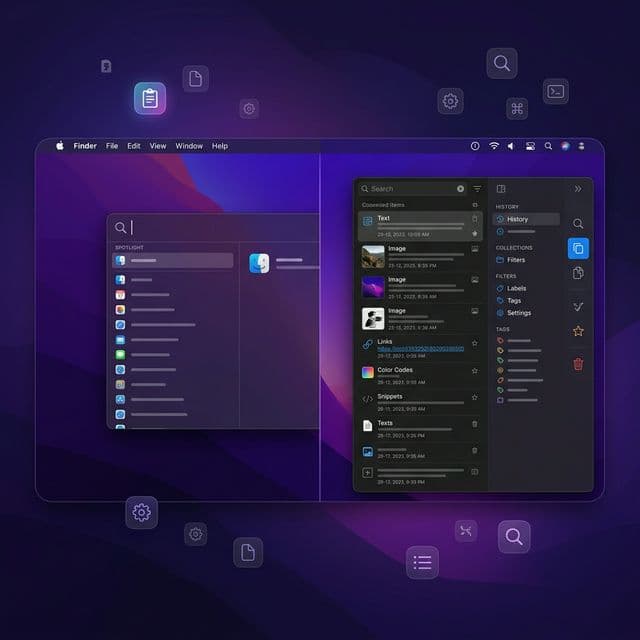
The clipboard is one of those features you use hundreds of times a day without thinking about it. Copy, paste, move on. It is the invisible backbone of every workflow on your Mac, whether you are writing code, drafting emails, or assembling a presentation. And yet, for the better part of four decades, the macOS clipboard has remained stubbornly simple: one item in, one item out.
With macOS Sequoia (15) in 2024 and the subsequent macOS Tahoe (26) in 2025, Apple has started to address some long-standing clipboard limitations. But has it gone far enough? Let's take an honest look at what macOS provides natively, what has changed recently, and where significant gaps remain.
A Brief History of the Mac Clipboard
The Mac clipboard has existed since the original Macintosh in 1984. For most of its history, it has worked the same way: Cmd+C copies one item, Cmd+V pastes it, and whatever you copied before is gone forever. There was no history, no search, no way to recover something you accidentally overwrote.
Apple did introduce a few refinements over the years. macOS Sierra (2016) brought Universal Clipboard, letting you copy on your iPhone and paste on your Mac (and vice versa). macOS Monterey (2021) added Universal Control for seamless mouse and keyboard sharing across devices. But throughout Ventura, Sonoma, and Sequoia, the core clipboard remained a single-item buffer with no built-in history.
Windows 10 introduced a built-in clipboard history panel (Win+V) back in 2018, complete with pinned items, cloud sync, and image support. Mac users have been waiting for a comparable feature for years.
What macOS Offers Natively Today
As of early 2026, here is the full picture of what macOS provides for clipboard functionality without any third-party software.
Basic Copy and Paste
The fundamentals remain unchanged. Cmd+C copies the current selection to the clipboard. Cmd+V pastes it. Cmd+X cuts. Cmd+Shift+V pastes without formatting in most applications (though this is not universal and some apps use Cmd+Option+Shift+V instead). You can also use Edit > Show Clipboard in Finder to see your most recent copied item, a feature that has existed since the classic Mac OS era.
Universal Clipboard
Introduced in macOS Sierra, Universal Clipboard lets you copy text, images, photos, videos, and even entire files on one Apple device and paste them on another. It works automatically across any Mac, iPhone, iPad, or Apple Vision Pro signed into the same Apple Account, as long as Bluetooth, Wi-Fi, and Handoff are enabled and the devices are within about 30 feet of each other.
Universal Clipboard is genuinely useful, but it still only transfers the most recent copied item. There is no multi-item sync across devices.
Spotlight Clipboard History (macOS Tahoe)
The biggest clipboard-related change in recent macOS history arrived with macOS 26 Tahoe in September 2025. Apple added a clipboard history feature integrated directly into Spotlight. You access it by pressing Cmd+Space to open Spotlight and then Cmd+4 to switch to the clipboard history panel.
This was a genuinely welcome addition. For the first time, macOS natively remembers more than one copied item. You can scroll through recently copied text, links, and images, search within your clipboard history, and double-click an item to paste it.
With macOS 26.1, Apple expanded the retention options. Users can now choose how long clipboard items are kept: 30 minutes, 8 hours, or 7 days. There is also a manual Clear Clipboard History button in System Settings under Spotlight.
Where the Built-In Clipboard Still Falls Short
Apple's Spotlight clipboard history is a step forward, but it has significant limitations that become apparent as soon as you rely on it for real work.
Limited Retention Period
Even at the maximum setting of seven days, your clipboard history is ephemeral. If you copied an important snippet last week, it is already gone. For anyone who works on long-running projects, seven days is not enough. A dedicated clipboard manager can retain items for months or years, ensuring that nothing you copy is ever truly lost.
No Pinning or Favorites
There is no way to pin frequently used items in Apple's clipboard history. If you regularly paste the same email address, code snippet, phone number, or template text, you have to copy it fresh each time or rely on a separate tool like text replacement. A clipboard manager lets you pin, star, or categorize items so your most-used clips are always one shortcut away.
Shallow Content Type Support
Apple's Spotlight clipboard handles text, links, and images, but it does not intelligently categorize content. It cannot distinguish between a code snippet, a URL, a color value, a spreadsheet fragment, or rich text in any meaningful way. You see a flat, undifferentiated list. A purpose-built clipboard manager can detect and label content types automatically, making it far easier to find what you need.
No Instant-Paste Shortcut
Accessing clipboard history through Spotlight requires multiple steps: open Spotlight, switch to the clipboard tab, find your item, and then paste. This is workable for occasional use, but it breaks your flow when you are moving fast. Windows offers Win+V as a single-step shortcut. Third-party Mac clipboard managers typically offer a global hotkey that summons the history panel instantly and pastes your selection into the active application in one motion.
“The best clipboard tool is one that stays out of your way until you need it, then puts exactly the right item at your fingertips in under a second.
No Search Across Rich Content
While Spotlight's clipboard does offer a basic text search, it cannot search within images, filter by content type, or sort by application source. If you copied a screenshot containing an error message two days ago, you will not find it by searching for the error text. A robust clipboard manager with content type filtering and visual thumbnails makes this kind of retrieval straightforward.
No Cross-Device History Sync
Universal Clipboard syncs the current clipboard item between your Apple devices, but the Spotlight clipboard history is local to each Mac. If you copy five items on your MacBook, those five items are not visible in the clipboard history on your iMac. For users who work across multiple machines, this is a notable gap.
Built-In vs. Clipboard Manager: A Feature Comparison
Here is how the native macOS clipboard stacks up against what a dedicated clipboard manager like Recopy provides.
- History depth - macOS: up to 7 days. Recopy: up to a year (configurable, up to 50,000 items).
- Content types - macOS: text, links, images. Recopy: 10 types including code snippets, PDFs, colors, rich text, file references, and spreadsheet data.
- Search - macOS: basic text search in Spotlight. Recopy: full-text search with content type filtering and instant results.
- Access speed - macOS: Cmd+Space then Cmd+4. Recopy: single global shortcut (Option+V) with one-click paste.
- Pinned items - macOS: not available. Recopy: pin frequently used clips for quick access.
- Deduplication - macOS: not available. Recopy: automatic consecutive deduplication via SHA-256 hashing.
- Preview - macOS: small inline preview. Recopy: full-size preview window for images, PDFs, and long text.
- Privacy controls - macOS: clear history manually. Recopy: configurable retention, automatic cleanup, all data stored locally.
- Usage statistics - macOS: none. Recopy: daily copy stats and content type breakdown charts.
Who Needs More Than the Built-In Clipboard?
If you only copy and paste a few times a day, the native macOS clipboard (even without history) is probably fine. But certain workflows expose its limitations quickly.
- Developers who juggle code snippets, API keys, SQL queries, and terminal commands throughout the day. Losing a carefully crafted regex because you copied a URL is infuriating.
- Writers and editors who move paragraphs between documents, collect research quotes, and paste citations. A clipboard history that lasts seven days is not enough for a two-month editorial project.
- Designers who copy hex color values, image assets, and text blocks between tools like Figma, Photoshop, and a browser. Being able to see image thumbnails in the clipboard history is essential.
- Customer support agents who repeatedly paste template responses, account URLs, and troubleshooting steps. Pinned clipboard items eliminate the need to keep a separate snippet file open.
- Researchers who collect data points, quotes, and references from dozens of sources. Searchable, persistent clipboard history turns the clipboard into a lightweight note-taking tool.
Track how many times you press Cmd+C tomorrow. Most knowledge workers copy 30 to 50 items per day. Now imagine having instant access to every single one of those items a week later. That is the difference a clipboard manager makes.
What macOS Tahoe Got Right
Credit where it is due. Apple's decision to add clipboard history to macOS Tahoe was overdue, but the implementation has some genuine strengths.
- Zero setup - It works out of the box with no installation or configuration required.
- Privacy-conscious defaults - The default eight-hour retention means sensitive data does not linger indefinitely.
- Spotlight integration - Building clipboard history into an existing system feature (Spotlight) means there is no new interface to learn.
- Searchable - Even basic text search within clipboard history is a massive improvement over having no history at all.
For casual users, this may be enough. But for anyone whose productivity depends on fluid, fast clipboard workflows, the native feature is a starting point rather than a destination.
How Recopy Fills the Gap
Recopy was built specifically for the workflows that macOS's built-in clipboard does not fully support. It lives in your menu bar, monitors your clipboard in real time, and gives you instant access to everything you have copied, organized by content type, searchable, and always available with a single keyboard shortcut.
Where Apple's clipboard history gives you a flat list of recent items, Recopy automatically classifies each clip into one of ten content types: plain text, rich text, HTML, URLs, images, PDFs, file references, code snippets, colors, and spreadsheet data. Each type gets its own icon and optimized preview, so you can visually scan your history instead of reading through lines of text.
Recopy also keeps your data entirely local. Everything is stored in a SwiftData database on your Mac with no cloud sync, no external servers, and no telemetry. You control the retention period (from days to a full year) and the maximum number of stored items. Automatic cleanup runs in the background so you never have to manage storage manually.
The Bottom Line
macOS has come a long way from its single-item clipboard days. Universal Clipboard remains a genuinely useful cross-device feature, and the Spotlight clipboard history in macOS Tahoe is a welcome (if overdue) addition. But for users who depend on their clipboard as a core productivity tool, the native experience still leaves significant room for improvement.
A dedicated clipboard manager like Recopy does not replace what macOS provides. It builds on top of it, adding the depth, speed, organization, and persistence that power users need. If you have ever lost a copied item and wished you could get it back, or spent time re-copying something you know you had earlier, that is exactly the gap Recopy was designed to fill.
Recopy is a native macOS clipboard manager that keeps your copy history organized, searchable, and always within reach. Learn more and download Recopy.